If you render image sequences, you know the pain:
scrubbing folders full of frames, guessing playback speed, or opening heavy software just to check timing.
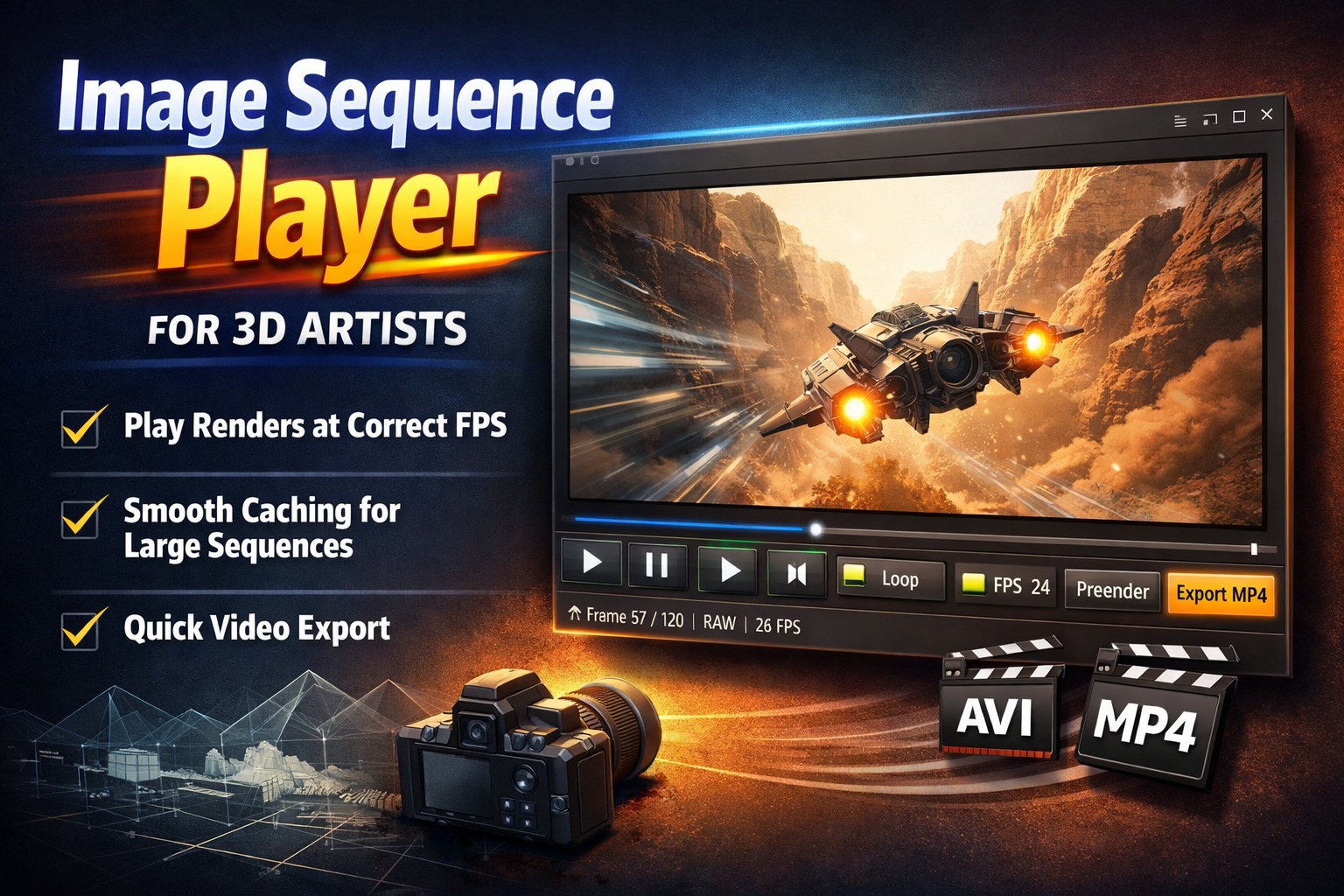
This Image Sequence Player is built to fix exactly that.
Play Your Renders at the Correct Framerate
Drop in a folder of images and hit play.
The player runs your sequence at a true, time-based framerate, so 24 fps actually feels like 24 fps—no drifting, no guesswork.
Perfect for:
- Animation previews
- Simulation checks
- Camera move timing
- Look-dev iterations
Smooth Playback, Even for Heavy Sequences
For larger renders, you can prerender the sequence into a cached video with one click.
Playback instantly becomes smooth and responsive—great for long or high-resolution sequences.
You can still scrub frame-by-frame when you need precision.
Loop, Scrub, Step — Instantly
- Loop animations for motion checks
- Scrub the timeline naturally
- Step frame-by-frame forward or backward
No setup, no importing, no project files.
Export a Quick Video File
Need to send a preview to a client or teammate?
Export your sequence directly to:
- AVI (fast, no recompression)
- MP4 (easy sharing, universal playback)
What you see is exactly what you export.
Why Artists Like It
- No timeline setup
- No codecs to fight
- No heavy software just to “check a render”
- Fast, clean, and predictable
It’s the kind of tool you keep open next to Blender, Houdini, or Unreal—just for viewing.
Built for One Job, Done Well
This isn’t an editor.
It’s a viewer that respects time, framerate, and your workflow.
If you work with image sequences, this tool saves time every single day.
Download here:
https://github.com/AnttiPerala/simpleImageSequencePlayer/releases/tag/1.0