A Simple Image Sequence Player Made for 3D Artists

If you render image sequences, you know the pain:
scrubbing folders full of frames, guessing playback speed, or opening heavy software just to check timing.

This Image Sequence Player is built to fix exactly that.


Play Your Renders at the Correct Framerate

Drop in a folder of images and hit play.
The player runs your sequence at a true, time-based framerate, so 24 fps actually feels like 24 fps—no drifting, no guesswork.

Perfect for:

  • Animation previews
  • Simulation checks
  • Camera move timing
  • Look-dev iterations

Smooth Playback, Even for Heavy Sequences

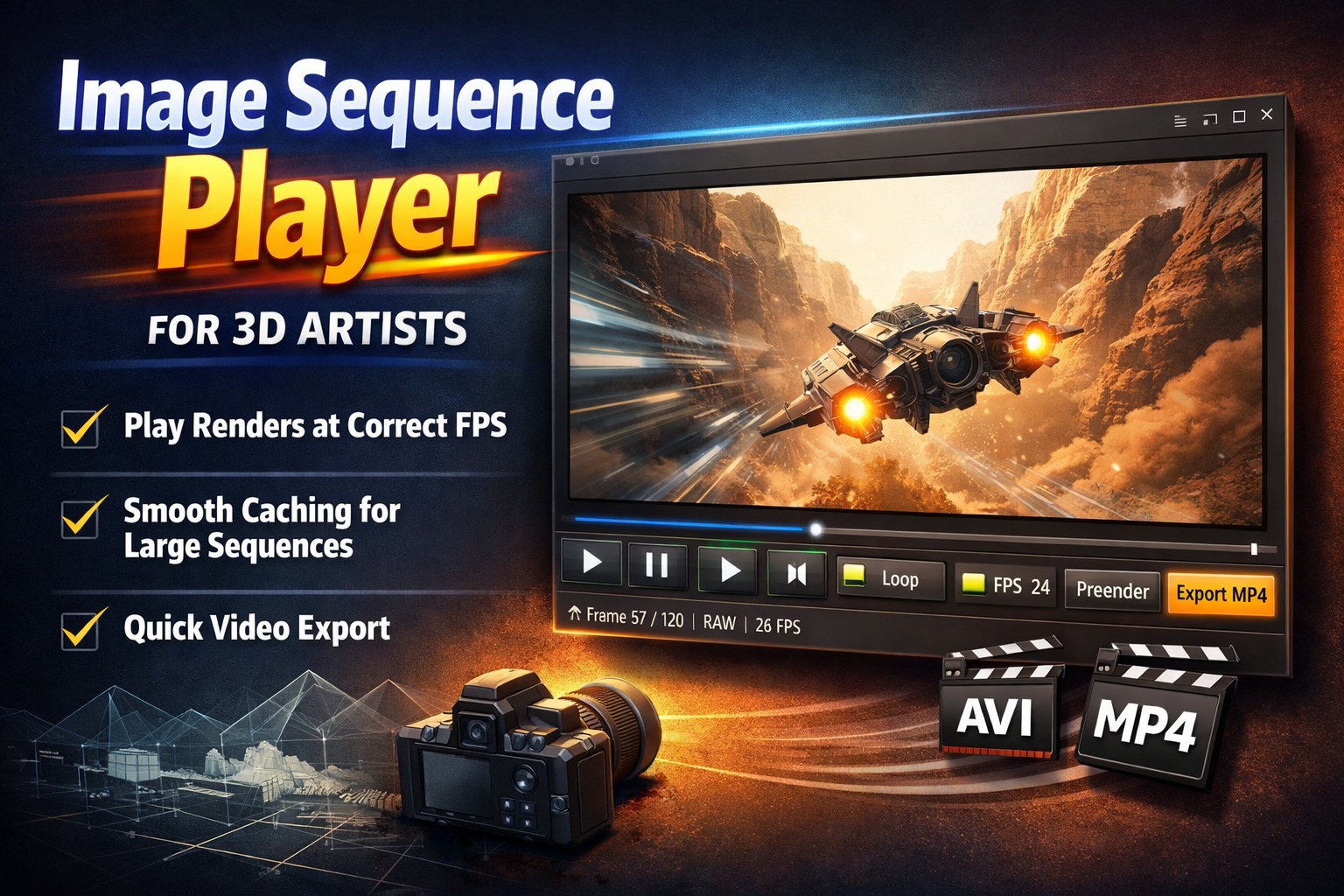
For larger renders, you can prerender the sequence into a cached video with one click.
Playback instantly becomes smooth and responsive—great for long or high-resolution sequences.

You can still scrub frame-by-frame when you need precision.


Loop, Scrub, Step — Instantly

  • Loop animations for motion checks
  • Scrub the timeline naturally
  • Step frame-by-frame forward or backward

No setup, no importing, no project files.


Export a Quick Video File

Need to send a preview to a client or teammate?

Export your sequence directly to:

  • AVI (fast, no recompression)
  • MP4 (easy sharing, universal playback)

What you see is exactly what you export.


Why Artists Like It

  • No timeline setup
  • No codecs to fight
  • No heavy software just to “check a render”
  • Fast, clean, and predictable

It’s the kind of tool you keep open next to Blender, Houdini, or Unreal—just for viewing.


Built for One Job, Done Well

This isn’t an editor.
It’s a viewer that respects time, framerate, and your workflow.

If you work with image sequences, this tool saves time every single day.

Download here:

https://github.com/AnttiPerala/simpleImageSequencePlayer/releases/tag/1.0

Cathy Directory Printer is amazing

The directory print software named Cathy is pretty amazing. It was designed for creating file catalogues of different disks, so that it is easy to search for your files even if the physical disk is not currently attached to the computer.

What makes this software really weird is that it hasn’t been updated since 2009 -but it still works great! And being so old, the file size is ridiculously small, just 153 KB.

Here is a link for downloading Cathy 2.33:
https://www.portablefreeware.com/index.php?id=1716

This is the basic workflow:

Run the Cathy.exe file and go to the “Catalog” tab. Click on the three dots … to point it to a disk to scan and click “add”.

After a little while the disk has been indexed and a new .caf file has been created for it, right next to the Cathy.exe. Now you can browse to that directory to see what files it has, even if the disk is no longer connected.

This allows you to search hundreds of disks at once, without any of them being physically present. Just go to the “Search” tab and type your search term to the “pattern” field and hit search. Cathy will breeze through all your catalogs and show you all matches from all the different drives. Now you know which drive you need to connect, in order to get to your file.

The .caf files are interchangeable, so you can create them on a different computer and just copy and paste them next to Cathy.exe and it will “see” them when you restart the program.

Solution to “Incorrect function” when trying to initialize a disk in the Windows Disk Manager

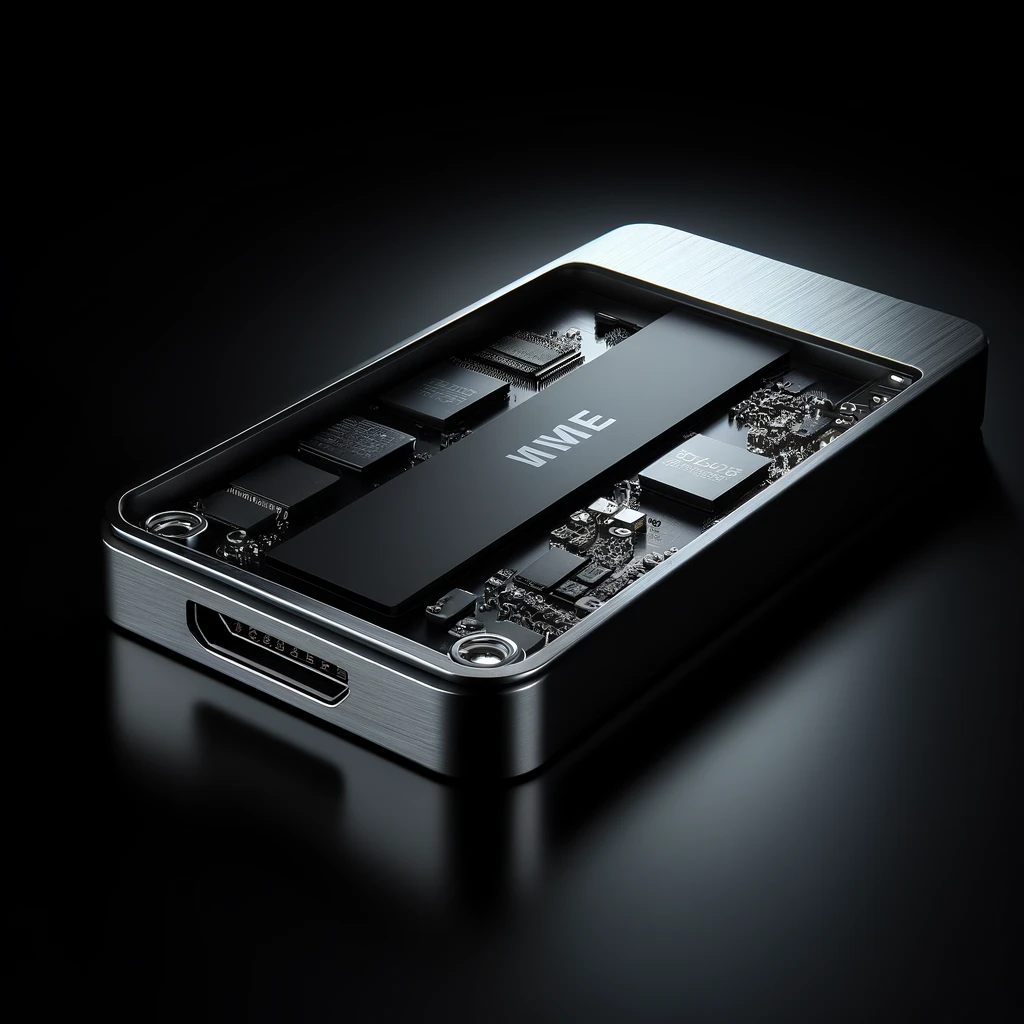
I cloned my Windows installation to a larger M.2 disk and then put the old smaller M.2 disk into an external usb enclosure. But no computer would recognize it properly. The Windows Disk Manager wanted me to “initialize” the disk but neither the MBR nor the GPT option would work, they both throw an error saying “incorrect function”.

I finally decided to try the disk in another usb enclosure, and it started working immediately. It turns out I was trying to use a SATA M.2 disk in a enclosure meant for NVMe SSD enclosures. While they looked the same, the functionalities were different and not interchangeable.

So the lesson is that you need to make sure you have the right kind of enclosure depending on if your disk is a SATA M.2 or NVMe M.2 SSD disk.

SATA M.2: These SSDs use the Serial ATA (SATA) interface protocol, which is the same interface used by traditional 2.5-inch SATA SSDs and hard drives. They typically have slower transfer speeds compared to NVMe SSDs, but are still much faster than traditional hard drives.

NVMe SSD: NVMe stands for Non-Volatile Memory Express. This is a newer interface protocol designed specifically for SSDs to take advantage of the high-speed PCIe bus. NVMe SSDs offer significantly faster transfer speeds compared to SATA SSDs, making them ideal for high-performance applications and tasks that require fast data transfer rates.

Both SATA M.2 and NVMe M.2 SSDs are physically installed into the same M.2 slot inside a computer. The difference lies in how they communicate with the motherboard once installed.

The M.2 slot is a small, form-factor slot on the motherboard specifically designed to accommodate M.2 SSDs. This slot can support both SATA and NVMe M.2 SSDs, but the SSDs themselves use different interface protocols once connected.

So, regardless of whether you have a SATA M.2 SSD or an NVMe M.2 SSD, you would physically install it into the same M.2 slot on your motherboard. However, the interface protocol and speed capabilities differ between the two types of SSDs.

Zoom: Don’t show camera while screen sharing

If you are doing a lot of screencasts with Zoom in which you share your screen, you might be wondering how you can stop the little video frame from the webcam being included in the recording. Luckily there is an option in the zoom settings to do just that.

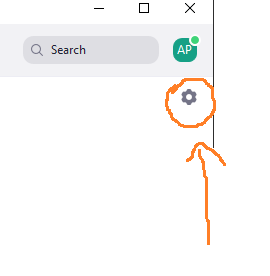
Start by clicking on the little cogwheel symbol in order to open the Zoom settings:

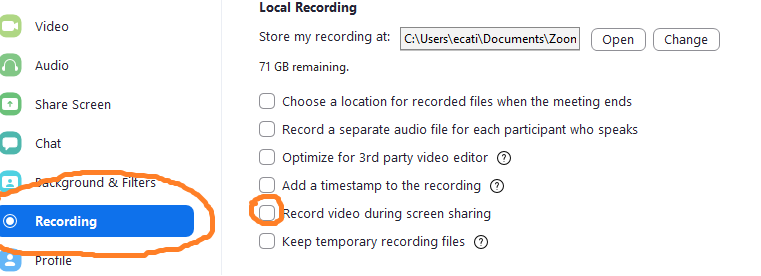
Next go to the “Recording” tab and there you can find the “Record video during screen sharing” setting:

Finally a good free tool for displaying keystrokes and mouse button presses

During my time making video tutorials and teaching various software programs to students I have constantly struggled with finding a good tool for displaying the keystrokes and mouse buttons that I use. The tool should be free, lightweight, customizable and open source. Earlier I was quite happy with the Screencastkeys-addon for Blender but stopped using it after it got removed from the trunk of Blender and the problem with it was of course also that it was for Blender only. Since then I have tried many decent programs like KeycastOW, OSDHotkey and QiPress, but they all had some minor issues that made me search for yet another solution. Which I finally found in the latest beta-version of Carnac found here:

https://github.com/bfritscher/carnac/releases/tag/v3-beta

This tool is modern, looks good, has animations and now finally has also mouse support in the latest beta-version. I strongly recommend Carnac for the purpose of displaying key presses and mouse clicks for your recordings or streams.